Cars · Homes · High-involvement purchases
One sheet for every listing you are weighing
Buyers gather scattered listings to compare and share. Sellers pull in market comps and curate a set that fits the shopper's context. Cartrize turns each page into structured rows—fewer tabs, clearer Quotes.
Buyers
Capture listings, compare in one sheet, share a print-ready Quote.
Sellers
Pull in market comps, curate by buyer context, respond on the Board.

Listings rarely share the same format—yet you still need apples-to-apples rows. Capture from supported sites, let AI structure the fields, and line everything up before you publish or respond on the Quote Board.
Chrome extension
Cartrize pairs with a Chrome extension so you can send the listing or quote you are viewing straight into your account. Install from the Chrome Web Store, sign in once, then capture without leaving the page you are reading.
Install
Add Cartrize from the Chrome Web Store (use the listing under Links), confirm Add extension, then pin it to your toolbar as shown:
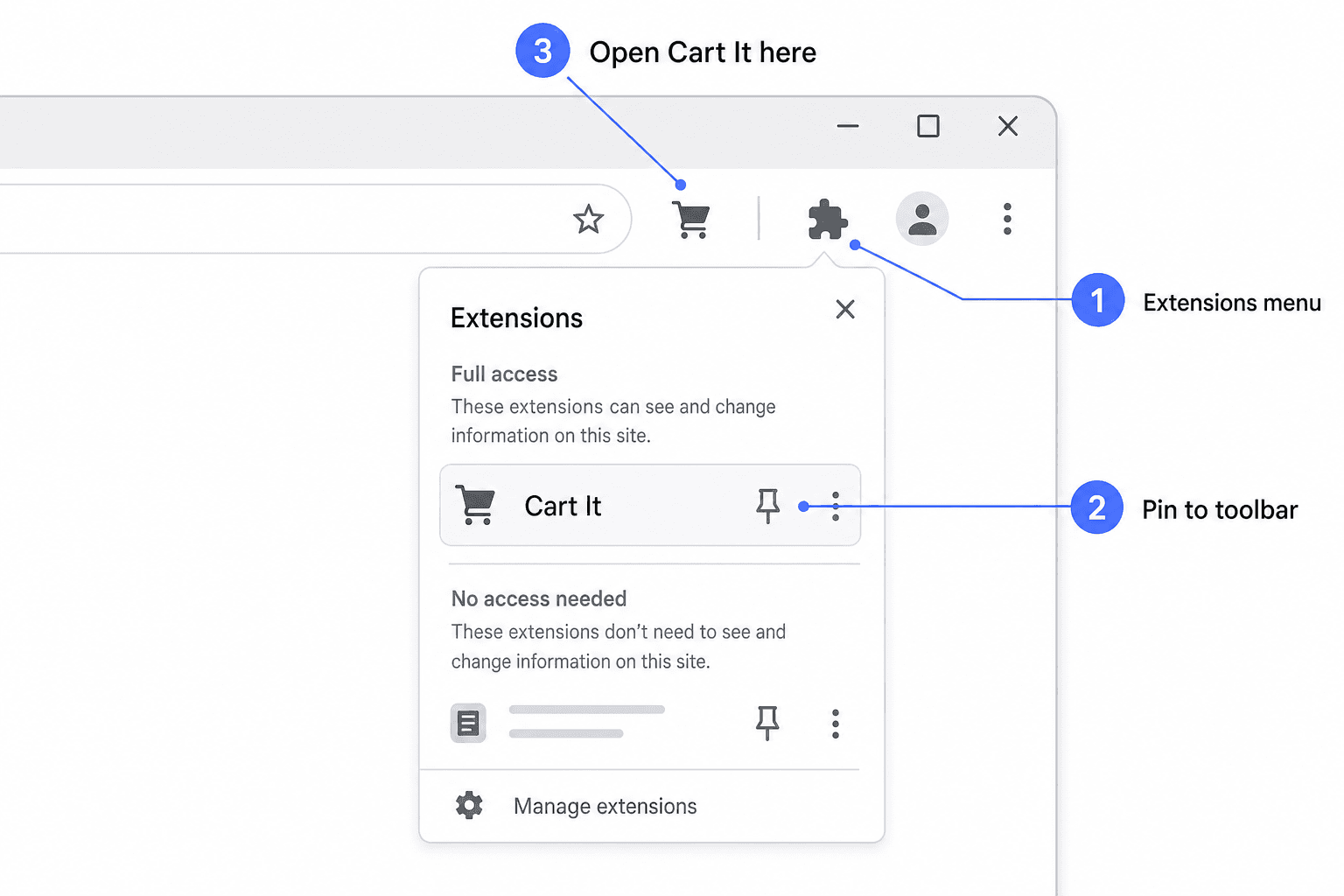
In the top-right of Chrome, click the puzzle piece (Extensions) to open the menu—this matches the 1 callout in the diagram.
Find Cartrize in the list and click the pushpin so it stays on the toolbar (callout 2).
Your Cartrize icon now sits on the toolbar (callout 3). Click it anytime to save the current listing page or open settings.
Links
- Chrome Web Store listing — link coming soon
- Extension notes / releases — link coming soon
After install: use Cartrize
With the extension on your toolbar, move from sign-in to your first saved row in four quick steps—each matches the numbered callouts in the diagram.

Create an account or sign in on this site—the screen shown in callout 1.
Open the detail page for the car, home, resale item, or other listing you want to compare—any supported site where the full offer text lives (callout 2).
Click the Cartrize toolbar icon and use Cartrize / Save to Cartrize to send that page into your account (callout 3). The first time you do this, approve any sign-in or permission prompt in the popup if Chrome asks.
Open the dashboard to compare rows, edit columns, and trim your shortlist (callout 4).
Capture once, compare for any side of the deal
- 01
Capture while the listing is in front of you
On a supported marketplace detail page, add what you are viewing without copy-paste. Collector keys keep parallel lists tidy when you are searching for more than one person or use case.
- 02
Compare in a real table, not a pile of tabs
Narrative listings flatten into comparable fields—price, location or mileage, condition—so you scan a row per option instead of rereading every site.
- 03
Publish a buyer Quote—or build a seller lineup
Edit cells, trim rows, and export a preview. Buyers post to the Quote Board; sellers reshape inventory for family, leisure, or budget use cases in one showing.
Customer stories
Three quick testimonials
Tap a story to read the full write-up.
“We stopped re-reading listings and started making decisions.”
Cartrize pulled scattered listing details into one sheet so the shortlist conversations were faster and calmer.
Ava R.
First-time home buyer · Denver
“The spreadsheet view made trade-offs obvious in minutes.”
Instead of bouncing between tabs, we captured the listings once and compared price, mileage, and features row by row.
Marcus T.
Used car buyer · Austin
“Quotes finally felt comparable—same fields, same table.”
Cartrize turned messy quote pages into structured columns, so choosing coverage was a clear decision instead of a guess.
Priya S.
Freelancer · Seattle